package com.exercise.AndroidAnimation;

import android.app.Activity;
import android.os.Bundle;
import android.view.View;
import android.view.animation.Animation;
import android.view.animation.Animation.AnimationListener;
import android.view.animation.AnimationUtils;
import android.widget.ImageView;

public class AndroidAnimationActivity extends Activity {

 ImageView image1, image2, image3;
 Animation animationSlideInLeft, animationSlideOutRight;
 ImageView curSlidingImage;

   /** Called when the activity is first created. */
   @Override
   public void onCreate(Bundle savedInstanceState) {
       super.onCreate(savedInstanceState);
       setContentView(R.layout.main);
       image1 = (ImageView)findViewById(R.id.image1);
       image2 = (ImageView)findViewById(R.id.image2);
       image3 = (ImageView)findViewById(R.id.image3);

       animationSlideInLeft = AnimationUtils.loadAnimation(this,
         android.R.anim.slide_in_left);
       animationSlideOutRight = AnimationUtils.loadAnimation(this,
         android.R.anim.slide_out_right);
       animationSlideInLeft.setDuration(1000);
       animationSlideOutRight.setDuration(1000);
       animationSlideInLeft.setAnimationListener(animationSlideInLeftListener);
       animationSlideOutRight.setAnimationListener(animationSlideOutRightListener);

       curSlidingImage = image1;
       image1.startAnimation(animationSlideInLeft);
       image1.setVisibility(View.VISIBLE);

   }

 @Override
 protected void onPause() {
  // TODO Auto-generated method stub
  super.onPause();
  image1.clearAnimation();
  image2.clearAnimation();
  image3.clearAnimation();
 }

 AnimationListener animationSlideInLeftListener
 = new AnimationListener(){

  @Override
  public void onAnimationEnd(Animation animation) {
   // TODO Auto-generated method stub

   if(curSlidingImage == image1){
    image1.startAnimation(animationSlideOutRight);
   }else if(curSlidingImage == image2){
    image2.startAnimation(animationSlideOutRight);
   }else if(curSlidingImage == image3){
    image3.startAnimation(animationSlideOutRight);
   }
  }

  @Override
  public void onAnimationRepeat(Animation animation) {
   // TODO Auto-generated method stub

  }

  @Override
  public void onAnimationStart(Animation animation) {
   // TODO Auto-generated method stub

  }};

 AnimationListener animationSlideOutRightListener
 = new AnimationListener(){
   @Override
  public void onAnimationEnd(Animation animation) {
   // TODO Auto-generated method stub
    if(curSlidingImage == image1){
     curSlidingImage = image2;
     image2.startAnimation(animationSlideInLeft);
     image1.setVisibility(View.INVISIBLE);
     image2.setVisibility(View.VISIBLE);
     image3.setVisibility(View.INVISIBLE);
    }else if(curSlidingImage == image2){
     curSlidingImage = image3;
     image3.startAnimation(animationSlideInLeft);
     image1.setVisibility(View.INVISIBLE);
     image2.setVisibility(View.INVISIBLE);
     image3.setVisibility(View.VISIBLE);
    }else if(curSlidingImage == image3){
     curSlidingImage = image1;
     image1.startAnimation(animationSlideInLeft);
     image1.setVisibility(View.VISIBLE);
     image2.setVisibility(View.INVISIBLE);
     image3.setVisibility(View.INVISIBLE);
    }
  }

  @Override
  public void onAnimationRepeat(Animation animation) {
   // TODO Auto-generated method stub

  }
  @Override
  public void onAnimationStart(Animation animation) {
   // TODO Auto-generated method stub

  }};
}
<?xml version="1.0" encoding="utf-8"?>
<LinearLayout xmlns:android="http://schemas.android.com/apk/res/android"
android:orientation="vertical"
android:layout_width="fill_parent"
android:layout_height="fill_parent"
>
<TextView
android:layout_width="fill_parent"
android:layout_height="wrap_content"
android:text="@string/hello"
/>
<ImageView
android:id="@+id/image1"
android:layout_width="fill_parent"
android:layout_height="wrap_content"
android:src="@drawable/icon"
android:visibility="invisible"
/>
<ImageView
android:id="@+id/image2"
android:layout_width="fill_parent"
android:layout_height="wrap_content"
android:src="@drawable/icon"
android:visibility="invisible"
/>
<ImageView
android:id="@+id/image3"
android:layout_width="fill_parent"
android:layout_height="wrap_content"
android:src="@drawable/icon"
android:visibility="invisible"
/>
</LinearLayout> Download the files.
Ref:
- Implement simple Fade-in Animation
- Handle Animation event, AnimationListener
- Android pre-defined Animation Resources
- Implement slide top-down vertical animation



 Well here is my first Delicious stack. A short (but growing) list of my favorite music available on YouTube. Hopefully I can come up with a stack for each decade.
 Well there is big news today and it is the new tablet from Amazon, the Kindle Fire. Here are the quick facts:

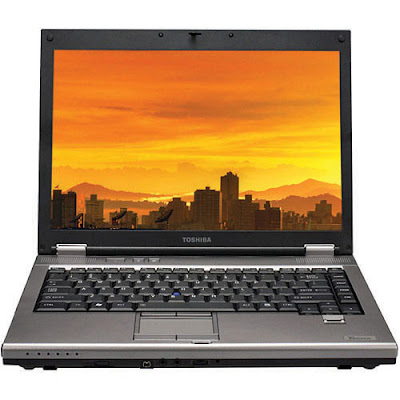

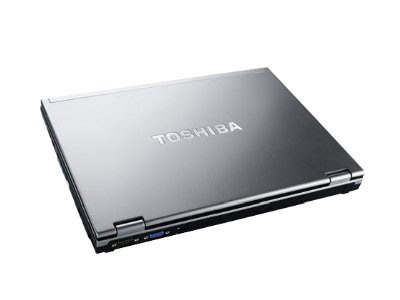


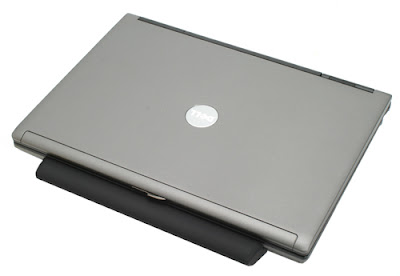






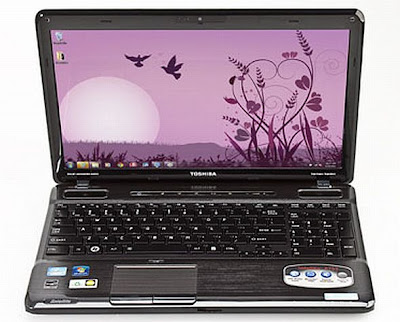
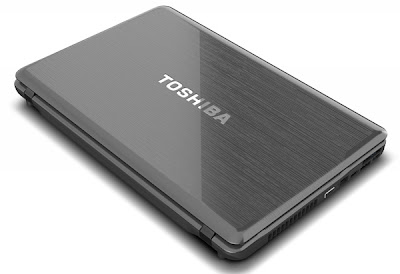
 This is the first in a new series on laptops with a matte finish. If you are like me and spend most of your day in front of a computer, you know how nice it is to have a matte finish. Briefly, a matte finish display reduces glare from other light sources, especially natural light. When turned off, an anti-glare matte display looks dark with little or no reflection. Contrast that with today's ultra bright displays that when turned off look like a mirror. This super reflectivity can lead to eye strain and headaches in some people. However, the new bright displays do look good in showrooms and thusly are very popular with many retailer today.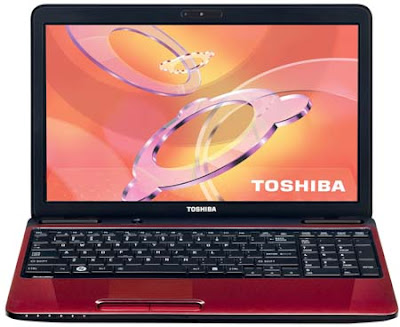


 While running an errand at lunch, the local radio station reported a textbook protest at the downtown Auraria campus.












 The Asus X52F-XR9 laptop computer easily handles productivity and entertainment on its brilliant