Check out this story on ars technica on Songbird. Its an open source MP3 player with some extras. It doesn't rip CDs yet, but that's coming. Worth checking out.
Thursday, 4 December 2008

Tuesday, 2 December 2008
The Gmail gadget
Google offers a free, search-based webmail service called Gmail. Yes it's completely free, vanquishes spam, and includes over 7 GB (and growing) of space so you'll never have to delete another message. Not convinced? Just search Google for "i love gmail" and behold the many positive testimonials and reviews.
We like this Gmail so much, we developed and released a Desktop gadget that you can use to monitor your Inbox, read messages, and compose new emails. Check out the announcement on the Gmail blog.

Please give Gmail and the gadget a try, spread the word to all your friends, and let us know what you think about the gadget.
More information | Download gadget | Gmail
We like this Gmail so much, we developed and released a Desktop gadget that you can use to monitor your Inbox, read messages, and compose new emails. Check out the announcement on the Gmail blog.

Please give Gmail and the gadget a try, spread the word to all your friends, and let us know what you think about the gadget.
More information | Download gadget | Gmail
Friday, 28 November 2008
Acer Aspire One - painless tsclient/rdesktop install
 I recently installed Terminal Server Client (tsclient) and Remote Desktop (rdesktop) on my Acer Aspire One. Here's a little background on what I did to get remote access to the Microsoft Windows servers in my data-center from my Acer Aspire One netbook.
The complete installation information is at this Google Site.
Background:
tsclient - Terminal Services Client is a front end for rdesktop and other remote desktop tools.
rdesktop - remote desktop is an open source client for Microsoft's proprietary Remote Desktop Protocol (RDP).
The Install in Brief:
- Install rdesktop using yum
- Download tsclient-0.150-5.fc8.i386.rpm from rpmfind.net
- Install tsclient using rpm

Once installed the AA1 desktop is modified to display the Terminal Services Client icon for ease of use.
Tuesday, 25 November 2008
Back to normal posting
I should be back to normal posting. The pee wee volleyball season is over and I'm on a more normal schedule again. The season went well and fun was had by all. :)
LAMP Scaling by the Big Boys
I ran across this at work and thought I should share. There are a lot of LAMP (Linux, Apache, MySQL, Perl/PHP/Python) sites out there on the Internet. One of the bigger ones is Wikipedia. Alka Gupta has posted this blog entry on how that site is scaled.
A very nice high level explanation. Good information to have in case you ever have a site that gets this big. Seven billion page views a month is a lot!
Sunday, 23 November 2008
A minimal Android application to display Map, using MapView
it's a very minimal Android application using MapView to display a Map on Android Phone.
My Setup is:
Ubuntu 8.10
Eclipse 3.4.1
Android SDK 1.0
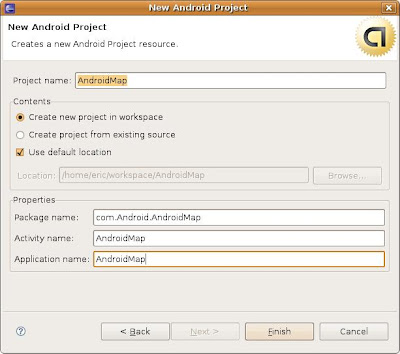
First of All, start Eclipse and create a Android Project:
In my exercise, I use AndroidMap as the name.
Project Name - AndroidMap
Package Name - com.Android.AndroidMap
Activity Name - AndroidMap
Application Name - AndroidMap
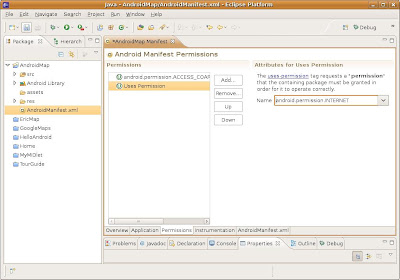
Now you have to grant permission to the application to access internet:
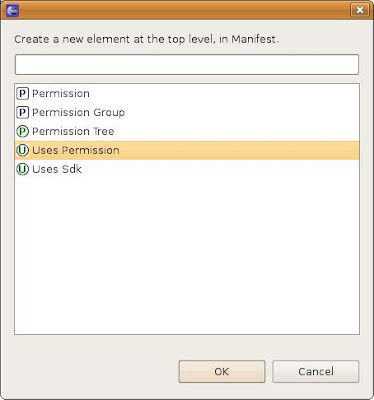
Select AndroidManifest.xml in res folder from Package Window on the left. Activate Permissions tab, then Add two Uses Permission, android.permission.ACCESS_COARSE_LOCATION and android.permission.INTERNET.
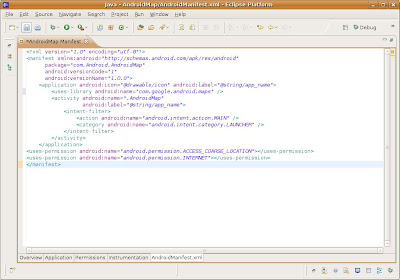
In order to use MapView, uses-library, "com.google.android.maps", have to be defined inside AndroidManifest.xml. Activate AndroidManifest.xml to manual edit the xml directly, insert
<uses-library android:name="com.google.android.maps" />
inside the <Application> element. The full listing of my AndroidManifest.xml:
Save and close AndroidManifest.xml.
Modify UI, (Package Window>res Folder>layout Folder>main.xml), by replacing TextView with MapView:
<com.google.android.maps.MapView
android:id="@+id/mapview"
android:layout_width="fill_parent"
android:layout_height="fill_parent"
android:enabled="true"
android:clickable="true"
android:apiKey="api_key_here" />
Please note that you MUST to insert your own "api_key_here".
In order to apply your own apiKey, you have to check your Getting the MD5 Fingerprint of the SDK Debug Certificate (for emulator), and Sign Up for the Android Maps API.
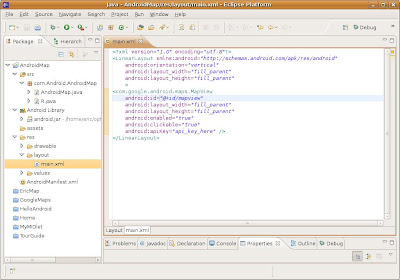
Save and close main.xml.
Finally, modify AndroidMap.java:
package com.Android.AndroidMap;
import com.google.android.maps.MapActivity;
import android.os.Bundle;
public class AndroidMap extends MapActivity {
/** Called when the activity is first created. */
@Override
public void onCreate(Bundle savedInstanceState) {
super.onCreate(savedInstanceState);
setContentView(R.layout.main);
}
@Override
protected boolean isRouteDisplayed() {
return false;
}
}
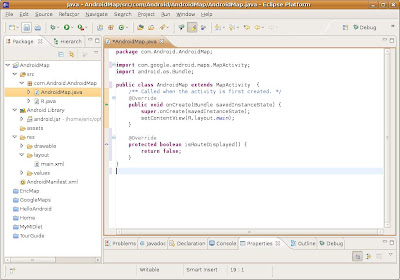
Save the java file.
Now you can Run the minimal AndroidMap on Emulator.
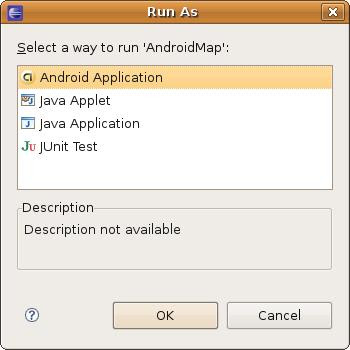
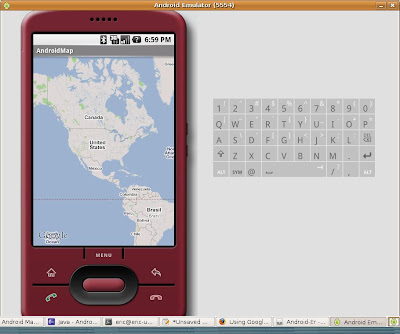
SORRY for all! Blogger re-format my code and make all the code mis-aligned, and not easy to read. I don't know how to fix it!!!
My Setup is:
Ubuntu 8.10
Eclipse 3.4.1
Android SDK 1.0
First of All, start Eclipse and create a Android Project:
In my exercise, I use AndroidMap as the name.
Project Name - AndroidMap
Package Name - com.Android.AndroidMap
Activity Name - AndroidMap
Application Name - AndroidMap

Now you have to grant permission to the application to access internet:
Select AndroidManifest.xml in res folder from Package Window on the left. Activate Permissions tab, then Add two Uses Permission, android.permission.ACCESS_COARSE_LOCATION and android.permission.INTERNET.


In order to use MapView, uses-library, "com.google.android.maps", have to be defined inside AndroidManifest.xml. Activate AndroidManifest.xml to manual edit the xml directly, insert
<uses-library android:name="com.google.android.maps" />
inside the <Application> element. The full listing of my AndroidManifest.xml:

Save and close AndroidManifest.xml.
Modify UI, (Package Window>res Folder>layout Folder>main.xml), by replacing TextView with MapView:
<com.google.android.maps.MapView
android:id="@+id/mapview"
android:layout_width="fill_parent"
android:layout_height="fill_parent"
android:enabled="true"
android:clickable="true"
android:apiKey="api_key_here" />
Please note that you MUST to insert your own "api_key_here".
In order to apply your own apiKey, you have to check your Getting the MD5 Fingerprint of the SDK Debug Certificate (for emulator), and Sign Up for the Android Maps API.

Save and close main.xml.
Finally, modify AndroidMap.java:
package com.Android.AndroidMap;
import com.google.android.maps.MapActivity;
import android.os.Bundle;
public class AndroidMap extends MapActivity {
/** Called when the activity is first created. */
@Override
public void onCreate(Bundle savedInstanceState) {
super.onCreate(savedInstanceState);
setContentView(R.layout.main);
}
@Override
protected boolean isRouteDisplayed() {
return false;
}
}

Save the java file.
Now you can Run the minimal AndroidMap on Emulator.


SORRY for all! Blogger re-format my code and make all the code mis-aligned, and not easy to read. I don't know how to fix it!!!
Thursday, 20 November 2008
Featured gadget: On-Screen Ruler

Name: On-Screen Ruler
Author: Edwin Lee
Description: Ruler on your desktop to help you align your on-screen elements, and measure the number of pixels between them.
More information | Download gadget
Each week this blog features a recently added Google Desktop gadget that looks promising. If you'd like to see all new Desktop gadgets as they're published, subscribe to the RSS feed.
Subscribe to:
Posts (Atom)