- TinyUmbrella will save SHSH responses regardless of what firmware is on the device
- TinyUmbrella's default functionality is to request
- The current firmware signed by Apple for your device
- SHSH request is sent through Cydia so that Cydia has your SHSH
- If you get a successful message in the console and you have used the default values do not bug me about when Cydia decides to reflect what versions you have saved. I cannot support Cydia questions.
- Saurik (owner of Cydia) has nothing to do with TinyUmbrella. DO NOT bug him about SHSH's not showing up on Cydia's home screen. The mere fact that you got an SHSH response when pointing to Cydia means that he has your SHSH. Don't bug him about it not showing up.
- Incidentally, Cydia explicitly does not support iPhone4. If you want to save your SHSH through Cydia this is perfectly fine. I would strongly recommend saving through Cydia on an iPhone4 AND then saving again through Apple. Note: That only applies to iPhone4.
- Once Apple stops signing requests for a certain firmware there is nothing you can do to get SHSH's for older firmwares.
- The only exception to this is if Cydia has the SHSH (simply select the firmware from the drop-down and make sure Cydia is selected) If you get a 'device not eligible' message it means Cydia does not have them saved. END OF DISCUSSION. You missed the boat. Get over it.
- It is IMPOSSIBLE to convert SHSHs from one firmware version to another or from one device type to another. DON'T ASK.
- If TinyUmbrella gives you a message that it cannot start the server on port 80 because it is in use - this is a polite way of saying: Figure out what stuff is running on your computer and try again. Perhaps eventually I'll put something in TinyUmbrella to give you the option of killing whatever is running on that port but for now I don't feel like it. (read: it's more than trivial)
- TinyUmbrella requires administrator privileges AND Java 1.6 or above.
- Mac users must take TinyUmbrella OUT of the DMG before trying to run it.
- TinyUmbrella saves your files to a hidden directory so you don't have to worry about managing them. If you really want to mess with them then they are in your HOME/.shsh directory. If you cannot figure out how to get to that directory then it's highly unlikely you'll be successful maintaining them...
Wednesday, 7 July 2010
TinyUmbrella - 4.00.54
With some of the new folks I figure I should explain :again: some facts. Please read the info below. I get quite a few tweets and emails from people that have either ADHD or a severe learning disability because they simply have not read my blog. Going forward if I ignore your question it is because it is answered below.

Tuesday, 6 July 2010
AsyncTask: perform background operations and publish results on the UI thread
This exercise have the same effect of "Android background thread, by extending Thread" and "Android background thread, by implementing Thread object, provided with a Runnable object". It is implemented in AsyncTask instead of Thread.

AsyncTask enables proper and easy use of the UI thread. This class allows to perform background operations and publish results on the UI thread without having to manipulate threads and/or handlers.
An asynchronous task is defined by a computation that runs on a background thread and whose result is published on the UI thread. An asynchronous task is defined by 3 generic types, called Params, Progress and Result, and 4 steps, called begin, doInBackground, processProgress and end.
main.xml
AndroidBackgroundAsyncTask.java
 Download the files.
Related Article: onPostExecute() of AsyncTask

AsyncTask enables proper and easy use of the UI thread. This class allows to perform background operations and publish results on the UI thread without having to manipulate threads and/or handlers.
An asynchronous task is defined by a computation that runs on a background thread and whose result is published on the UI thread. An asynchronous task is defined by 3 generic types, called Params, Progress and Result, and 4 steps, called begin, doInBackground, processProgress and end.
main.xml
<?xml version="1.0" encoding="utf-8"?>
<LinearLayout xmlns:android="http://schemas.android.com/apk/res/android"
  android:orientation="vertical"
  android:layout_width="fill_parent"
  android:layout_height="fill_parent"
  >
<TextView
  android:layout_width="fill_parent"
  android:layout_height="wrap_content"
  android:text="@string/hello"
  />
<TextView
  android:id="@+id/mytext"
  android:layout_width="fill_parent"
  android:layout_height="wrap_content"
  android:text="This Text will be Turn ON/OFF triggered by AsyncTask."
  />
</LinearLayout>
AndroidBackgroundAsyncTask.java
package com.exercise.AndroidBackgroundAsyncTask;

import android.app.Activity;
import android.os.AsyncTask;
import android.os.Bundle;
import android.os.SystemClock;
import android.view.View;
import android.widget.TextView;
import android.widget.Toast;

public class AndroidBackgroundAsyncTask extends Activity {

TextView myText;

  public class BackgroundAsyncTask extends
  AsyncTask<Void, Boolean, Void> {

   boolean myTextOn;

 @Override
 protected Void doInBackground(Void... params) {
  // TODO Auto-generated method stub

  while(true)
  {
   myTextOn = !myTextOn;
   publishProgress(myTextOn);
   SystemClock.sleep(1000);
  }
  //return null;
 }

 @Override
 protected void onPostExecute(Void result) {
  // TODO Auto-generated method stub
  //it will never been shown in this exercise...
  Toast.makeText(AndroidBackgroundAsyncTask.this,
    "onPostExecute", Toast.LENGTH_LONG).show();
 }

 @Override
 protected void onPreExecute() {
  // TODO Auto-generated method stub
  myTextOn = true;
  Toast.makeText(AndroidBackgroundAsyncTask.this,
    "onPreExecute", Toast.LENGTH_LONG).show();
 }

 @Override
 protected void onProgressUpdate(Boolean... values) {
  // TODO Auto-generated method stub

  if (values[0]){
   myText.setVisibility(View.GONE);
  }
  else{
   myText.setVisibility(View.VISIBLE);
  }
 }


}

/** Called when the activity is first created. */
  @Override
  public void onCreate(Bundle savedInstanceState) {
      super.onCreate(savedInstanceState);
      setContentView(R.layout.main);
      myText = (TextView)findViewById(R.id.mytext);

      new BackgroundAsyncTask().execute();
  }
}
Related Article: onPostExecute() of AsyncTask
JQuery: Handling Combo/Select Box Events
 While creating a Namespace example yesterday, I needed the code to actually do something to provide a good example. So, the code created an example of how to manipulate an HTML combo/select box using JQuery. The key is to use the change event on the combo box to execute the code needed to update the list.
$('#ListSelect').change(Blue.gen.comboSelect);Check out the example's source code for the details.
Monday, 5 July 2010
Linkify
Linkify take a piece of text and a regular expression and turns all of the regex matches in the text into clickable links. This is particularly useful for matching things like email addresses, web urls, etc. and making them actionable. Alone with the pattern that is to be matched, a url scheme prefix is also required. Any pattern match that does not begin with the supplied scheme will have the scheme prepended to the matched text when the clickable url is created.

main.xml
AndroidLinkify.java
Download the files.

main.xml
<?xml version="1.0" encoding="utf-8"?>
<LinearLayout xmlns:android="http://schemas.android.com/apk/res/android"
    android:orientation="vertical"
    android:layout_width="fill_parent"
    android:layout_height="fill_parent"
    >
<TextView
    android:layout_width="fill_parent"
    android:layout_height="wrap_content"
    android:text="@string/hello"
    />
<EditText
    android:id="@+id/editfield"
    android:layout_width="fill_parent"
    android:layout_height="wrap_content"
    />
</LinearLayout>
AndroidLinkify.java
package com.exercise.AndroidLinkify;

import android.app.Activity;
import android.os.Bundle;
import android.text.util.Linkify;
import android.view.KeyEvent;
import android.view.View;
import android.widget.EditText;

public class AndroidLinkify extends Activity {
    /** Called when the activity is first created. */
    @Override
    public void onCreate(Bundle savedInstanceState) {
        super.onCreate(savedInstanceState);
        setContentView(R.layout.main);

        final EditText editField = (EditText)findViewById(R.id.editfield);
        editField.setOnKeyListener(new EditText.OnKeyListener(){

   @Override
   public boolean onKey(View v, int keyCode, KeyEvent event) {
    // TODO Auto-generated method stub
    Linkify.addLinks(editField,
      Linkify.EMAIL_ADDRESSES|
      Linkify.MAP_ADDRESSES|
      Linkify.PHONE_NUMBERS|
      Linkify.WEB_URLS);
    return false;
   }});
    }
}
JavaScript Namespace Example

This namespace example puts almost all of the JavaScript code in the Blue namespace. The key point I was missing was the declaration of the space. For example, the namespace can be defined using JSON like this.
   1:var Blue = {
   2:  obj:{}, // Objects
   3:  gen:{}  // General Functions
   4:}
   5:
Note: Line Numbers are unrelated to the actual position of the code in the exampleThe 3 letter abbreviations separate functions and objects into something similar to Java packages. The package names should be spelled out, but I'm lazy so 3 letter abbreviations for me.
Declare your instance variables and methods with code similar to this.
   1:Blue.obj.List = function(newName){
   2:  this.listName = newName;
   3:  this.itemArr = new Array();
   4:}
   5:
   6:
   7:Blue.obj.List.prototype.addItem = function(newItem){
   8:  this.itemArr.push(newItem);
   9:}
  10:
  11:Blue.obj.List.prototype.deleteItem = function(index){
  12:  this.itemArr.splice(item);
  13:}
  14:
It may seem a bit wordy or maybe a bit of overkill at first. However, in the end your code will be much easier to maintain if you use this approach.
JQuery: Handling a Selection from a Combo or Select Box
How do you handle when a user makes a selection from an HTML combo or select box? First, in HTML combo/select boxes are created with a <select> tag which encloses a bunch of <option> tags. With JQuery, use the change event to capture selection from the combo box. A well written article on the subject can be found on jetlogs.org.
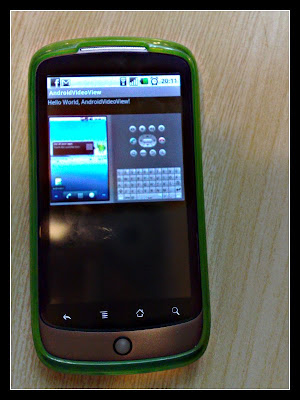
Displays video in VideoView
The VideoView class can load images from various sources (such as resources or content providers), takes care of computing its measurement from the video so that it can be used in any layout manager, and provides various display options such as scaling and tinting.
main.xml
AndroidVideoView.java
The App can run on real phone (tested on Nexus One), but cannot run on emulator with error of "Sorry, this video cannot be played", may be limited by the actual performance of emulator.

To capture the URL of YouTube video in 3gp, browse to http://m.youtube.com/ and capture the URL.
Download the files.
Related article:
- Event handler of VideoView - OnCompletion, OnPrepared and OnError

main.xml
<?xml version="1.0" encoding="utf-8"?>
<LinearLayout xmlns:android="http://schemas.android.com/apk/res/android"
 android:orientation="vertical"
 android:layout_width="fill_parent"
 android:layout_height="fill_parent"
 >
<TextView
 android:layout_width="fill_parent"
 android:layout_height="wrap_content"
 android:text="@string/hello"
 />
<VideoView
 android:id="@+id/videoview"
 android:layout_width="fill_parent"
 android:layout_height="fill_parent"
 />
</LinearLayout>
AndroidVideoView.java
package com.exercise.AndroidVideoView;

import android.app.Activity;
import android.net.Uri;
import android.os.Bundle;
import android.widget.MediaController;
import android.widget.VideoView;

public class AndroidVideoView extends Activity {
 /** Called when the activity is first created. */
 @Override
 public void onCreate(Bundle savedInstanceState) {
     super.onCreate(savedInstanceState);
     setContentView(R.layout.main);

     VideoView myVideoView = (VideoView)findViewById(R.id.videoview);

     String viewSource ="rtsp://v5.cache1.c.youtube.com/CjYLENy73wIaLQklThqIVp_AsxMYESARFEIJbXYtZ29vZ2xlSARSBWluZGV4YIvJo6nmx9DvSww=/0/0/0/video.3gp";

     myVideoView.setVideoURI(Uri.parse(viewSource));
     myVideoView.setMediaController(new MediaController(this));
     myVideoView.requestFocus();
     myVideoView.start();

 }
}
The App can run on real phone (tested on Nexus One), but cannot run on emulator with error of "Sorry, this video cannot be played", may be limited by the actual performance of emulator.

To capture the URL of YouTube video in 3gp, browse to http://m.youtube.com/ and capture the URL.
Download the files.Related article:
- Event handler of VideoView - OnCompletion, OnPrepared and OnError
Subscribe to:
Posts (Atom)