In the former article "
A simple Home Screen App Widget to get Date/Time", we have a very minimal widget: simple self-described as a widget with update duration, then update the widget with current time. In the exercise, no configure activity have been defined; such that the update() method of the provider activity will be call when add the widget in home screen, and when update period is reached.
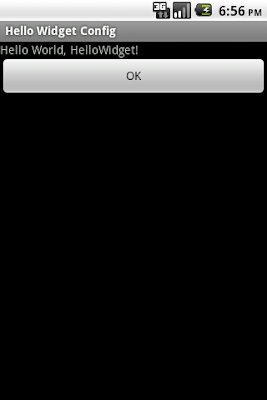
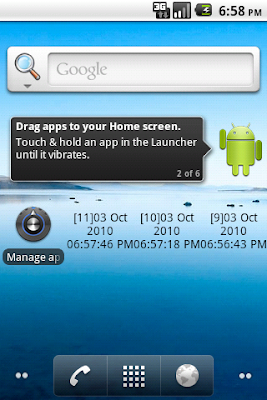
In this exercise, a configure activity wil be implemented; the onCreate() method of the configure activity will be called when the widget is added on home screen. And also, the onUpdate() method of the HelloWidgetProvider cass (extends AppWidgetProvider) will be modified to handle each appWidgetIds separately.
Modify onUpdate() of HelloWidgetProvider.java, and implemented updateAppWidget() method which will be called by onUpdate() and the new added configure activity.
onUpdate() includes a loop that iterates through each entry in appWidgetIds, which is an array of IDs that identify each App Widget created by this provider. In this way, if the user creates more than one instance of the App Widget, then they are all updated simultaneously.
package com.exercise.HelloWidget;

import java.text.SimpleDateFormat;
import java.util.Date;

import android.appwidget.AppWidgetManager;
import android.appwidget.AppWidgetProvider;
import android.content.Context;
import android.widget.RemoteViews;
import android.widget.Toast;

public class HelloWidgetProvider extends AppWidgetProvider {

private static SimpleDateFormat formatter = new SimpleDateFormat("dd MMM yyyy  hh:mm:ss a");
static String strWidgetText = "";

@Override
public void onDeleted(Context context, int[] appWidgetIds) {
// TODO Auto-generated method stub
//super.onDeleted(context, appWidgetIds);
Toast.makeText(context, "onDeleted()", Toast.LENGTH_LONG).show();
}

@Override
public void onDisabled(Context context) {
// TODO Auto-generated method stub
//super.onDisabled(context);
Toast.makeText(context, "onDisabled()", Toast.LENGTH_LONG).show();
}

@Override
public void onEnabled(Context context) {
// TODO Auto-generated method stub
//super.onEnabled(context);
Toast.makeText(context, "onEnabled()", Toast.LENGTH_LONG).show();
}

@Override
public void onUpdate(Context context, AppWidgetManager appWidgetManager,
 int[] appWidgetIds) {
// TODO Auto-generated method stub
super.onUpdate(context, appWidgetManager, appWidgetIds);

final int N = appWidgetIds.length;
     for (int i=0; i<N; i++) {
         int appWidgetId = appWidgetIds[i];
         updateAppWidget(context, appWidgetManager, appWidgetId);

         Toast.makeText(context, "onUpdate(): " + String.valueOf(i) + " : " +  String.valueOf(appWidgetId), Toast.LENGTH_LONG).show();
     }

}

public static void updateAppWidget(Context context, AppWidgetManager appWidgetManager,
 int appWidgetId){
String currentTime = formatter.format(new Date());
strWidgetText = currentTime;

RemoteViews updateViews = new RemoteViews(context.getPackageName(), R.layout.hellowidget_layout);
updateViews.setTextViewText(R.id.widgettext, "[" + String.valueOf(appWidgetId) + "]" + strWidgetText);
appWidgetManager.updateAppWidget(appWidgetId, updateViews);

Toast.makeText(context, "updateAppWidget(): " + String.valueOf(appWidgetId) + "\n" + strWidgetText, Toast.LENGTH_LONG).show();

}

}
Implement /res/layout/config.xml which is the layout of the configure activity
<?xml version="1.0" encoding="utf-8"?>
<LinearLayout xmlns:android="http://schemas.android.com/apk/res/android"
 android:orientation="vertical"
 android:layout_width="fill_parent"
 android:layout_height="fill_parent"
 >
<TextView
 android:layout_width="fill_parent"
 android:layout_height="wrap_content"
 android:text="@string/hello"
 />
<Button
 android:id="@+id/okconfig"
 android:layout_width="fill_parent"
 android:layout_height="wrap_content"
 android:text="OK"
 />
</LinearLayout>
Implement the configure activity, HelloWidgetConfig extends Activity. Actually, it do nothing except prompt the user to click on the OK button.
package com.exercise.HelloWidget;

import android.app.Activity;
import android.appwidget.AppWidgetManager;
import android.content.Context;
import android.content.Intent;
import android.os.Bundle;
import android.view.View;
import android.widget.Button;
import android.widget.Toast;

public class HelloWidgetConfig extends Activity {

Button configOkButton;
int mAppWidgetId = AppWidgetManager.INVALID_APPWIDGET_ID;

@Override
protected void onCreate(Bundle savedInstanceState) {
// TODO Auto-generated method stub
super.onCreate(savedInstanceState);

setResult(RESULT_CANCELED);

     setContentView(R.layout.config);

     configOkButton = (Button)findViewById(R.id.okconfig);
     configOkButton.setOnClickListener(configOkButtonOnClickListener);

     Intent intent = getIntent();
     Bundle extras = intent.getExtras();
     if (extras != null) {
         mAppWidgetId = extras.getInt(
                 AppWidgetManager.EXTRA_APPWIDGET_ID,
                 AppWidgetManager.INVALID_APPWIDGET_ID);
     }

     // If they gave us an intent without the widget id, just bail.
     if (mAppWidgetId == AppWidgetManager.INVALID_APPWIDGET_ID) {
         finish();
     }
}

private Button.OnClickListener configOkButtonOnClickListener
= new Button.OnClickListener(){

@Override
public void onClick(View arg0) {
 // TODO Auto-generated method stub

 final Context context = HelloWidgetConfig.this;

 AppWidgetManager appWidgetManager = AppWidgetManager.getInstance(context);

 //RemoteViews views = new RemoteViews(context.getPackageName(), R.layout.hellowidget_layout);
 //appWidgetManager.updateAppWidget(mAppWidgetId, views);
 HelloWidgetProvider.updateAppWidget(context, appWidgetManager, mAppWidgetId);

 Toast.makeText(context, "HelloWidgetConfig.onClick(): " + String.valueOf(mAppWidgetId) , Toast.LENGTH_LONG).show();

 Intent resultValue = new Intent();
 resultValue.putExtra(AppWidgetManager.EXTRA_APPWIDGET_ID, mAppWidgetId);
 setResult(RESULT_OK, resultValue);
 finish();
}};

}
Modify hellowidgetproviderinfo.xml to include android:configure="com.exercise.HelloWidget.HelloWidgetConfig"
<appwidget-provider xmlns:android="http://schemas.android.com/apk/res/android"
android:minWidth="72dp"
android:minHeight="72dp"
android:updatePeriodMillis="1800000"
android:initialLayout="@layout/hellowidget_layout"
android:configure="com.exercise.HelloWidget.HelloWidgetConfig"
>
</appwidget-provider>
Modify AndroidManifest.xml to add HelloWidgetConfig as a activity with intent-filter of "android.appwidget.action.APPWIDGET_CONFIGURE".
<?xml version="1.0" encoding="utf-8"?>
<manifest xmlns:android="http://schemas.android.com/apk/res/android"
   package="com.exercise.HelloWidget"
   android:versionCode="1"
   android:versionName="1.0">
 <application android:icon="@drawable/icon" android:label="@string/app_name">
<receiver android:name="HelloWidgetProvider" >
   <intent-filter>
       <action android:name="android.appwidget.action.APPWIDGET_UPDATE" />
   </intent-filter>
   <meta-data android:name="android.appwidget.provider"
    android:resource="@xml/hellowidgetproviderinfo" />
</receiver>
<activity android:name=".HelloWidgetConfig"
               android:label="Hello Widget Config">
         <intent-filter>
             <action android:name="android.appwidget.action.APPWIDGET_CONFIGURE" />
         </intent-filter>
     </activity>
 </application>
 <uses-sdk android:minSdkVersion="7" />

</manifest>
 Download the files
.
Related Article:
-
Notes on updatePeriodMillis in Home App Widget-
App Widget using Alarm ManagerReference:
Android Developers - App Widgets
 One thing I think the whole iPhone/iPad ecosystem lacks, is a really good web site for browsing apps. I don't know what anyone else thinks, but the iTunes store UI pretty much sucks.
 These steps are performed before doing any software installation or any real setup steps.
 I recently purchased a new MacBook Pro 17inch with a matte finish to use as my primary work machine. So over the next few days or weeks, I'm going to be posting on topics related to the setup of the machine.
  Have you ever wanted to customize VIM but you have no idea where to begin? Check out:

